Dec 12, 2025
Ariffud M.

When Anthropic announced Agent Skills, my first thought was: “So… are these just prompts saved in a folder? Is this a real feature or clever marketing?”
The official blog post uses jargon like “executable code” and “composable,” but it never explains how any of that helps someone like me – a regular user who relies on Claude to build web page samples, rewrite AI text to sound human, and turn existing materials into presentations.
I wanted to know if Skills offers a real workflow upgrade or just extra setup disguised as innovation. So I ignored the marketing gloss and ran a practical stress test.
I spent several hours setting up custom skills, comparing outputs with and without them, and even combining multiple skills in one session to see if Claude could juggle complex or overlapping instructions without falling apart.
I did the heavy lifting so that you can decide whether they’re worth the effort.
What are Claude Skills?
Many AI tools depend on fixed system prompts, but Claude takes a different approach with Skills: they are folders that store instructions, scripts, and resources that Claude loads only when needed.
Skills are available to Pro, Max, Team, and Enterprise users.
But the key thing I learned after reviewing the official documentation is a concept called progressive disclosure.
Instead of stuffing a giant system prompt with 50 pages of instructions into your context window, Skills “sleep” in the background as lightweight metadata – basically just a name and a description.
They use almost no memory until Claude needs them.
A Skill only “wakes up” when you trigger it, either by explicitly saying “Use the [skill-name] skill” or by writing a prompt like “Create a presentation,” which automatically activates the relevant skill.
This approach saves tokens and keeps the model focused by avoiding context rot, which happens when you force an AI tool to read a massive list of rules for every interaction, and its attention scatters.
By hiding instructions until the moment they’re needed, Claude stays sharper and less likely to get confused by irrelevant rules.
How I set up Claude Skills
To get started, I went to Settings → Capabilities and toggled on Code execution and File creation.
Then I scrolled down to the Skills section and saw Anthropic’s pre-made skills. I enabled one of them: brand-guidelines.
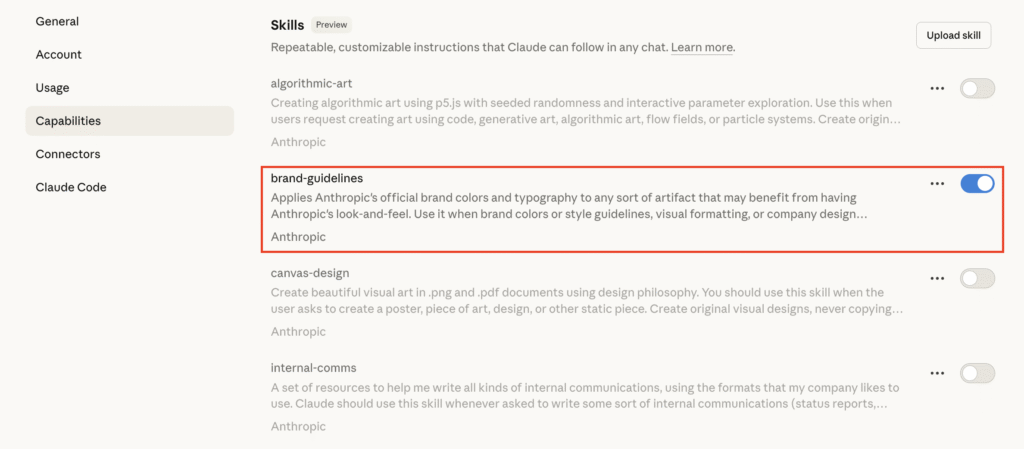
I also wanted to build my own Skill, so I opened the documentation on creating custom ones.
The doc turned out to be more complex than I expected. It said I needed to create a SKILL.md file, write instructions in Markdown, and package everything into a specific ZIP structure so Claude could load it.
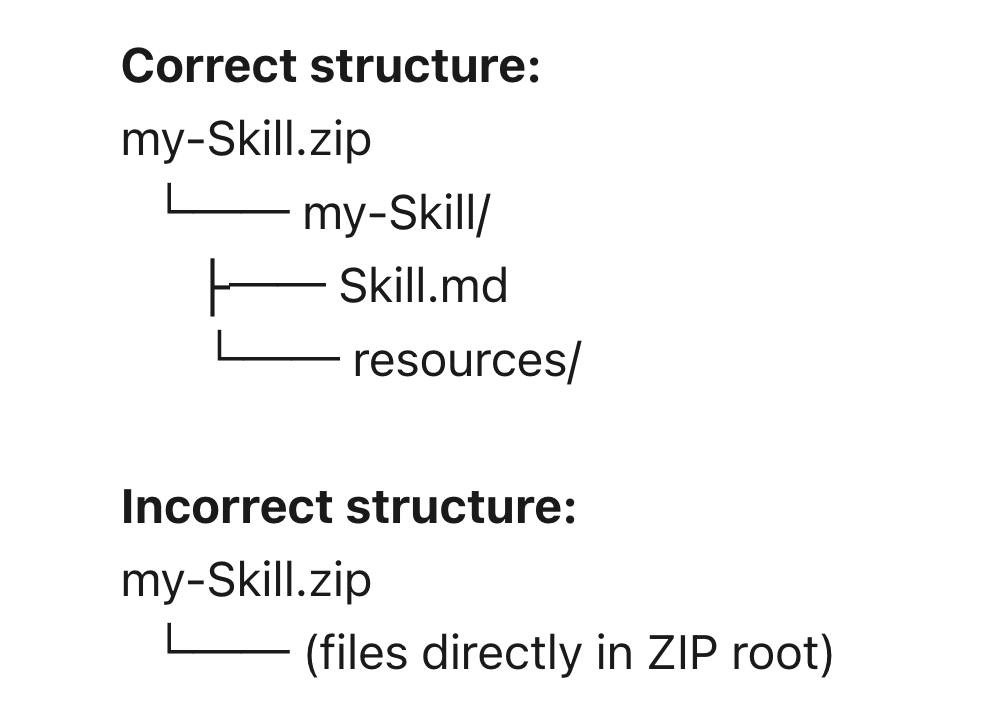
For casual users, that’s a high barrier for trying a new feature.
So I took a shortcut. I opened a chat and tried to bluff my way through it:
Hey, I want to create a custom skill to edit AI-written content so it aligns with my style guide. Can you help me do that?
Claude didn’t just give me instructions – it interviewed me. It asked about my style guide, the type of rules I wanted (marketing, technical, or something else), and my formatting preferences.
After I explained that I wanted a Skill to edit common AI phrases and pasted my rules, Claude generated a packaged ai-ism-editor.skill file right in the chat. I hit Save Skill, and it appeared in my Skills list instantly.
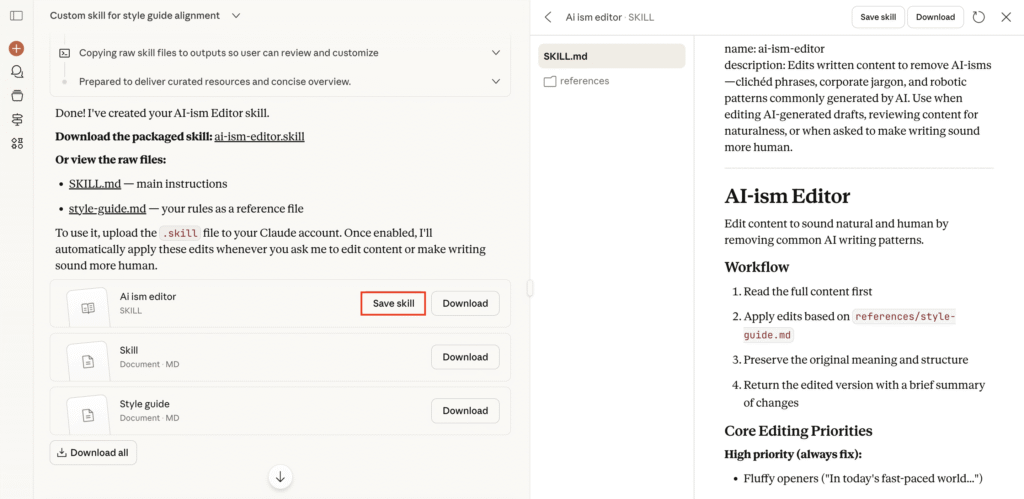
That’s proper feature integration – no Markdown, no manual uploads.
By this point, I had two Skills enabled: brand-guidelines and ai-ism-editor. But I also wanted to generate documents and presentations.
I remembered the description under Code execution and File creation:
“Claude can execute code and create and edit docs, spreadsheets, presentations…”

This confused me. Did I need to upload separate skills to do that? The documentation didn’t say. So I opened another chat and asked:
If I want to generate a document or presentation, do I need to create, upload, and enable new skills related to those tasks?
Claude replied:
No, you don’t need to create or upload any skills! When you toggle on “Code execution,” the core capabilities for generating documents (docx), presentations (pptx), spreadsheets (xlsx), and PDFs are already built-in.
That’s when I finally understood how Skills are structured:
- Core Skills (built-in). These handle the mechanics of generating files like Word documents, spreadsheets, and presentations.
- User Skills (custom). These shape Claude’s behavior, like my ai-ism-editor and brand-guidelines Skills.
For my test cases, everything I needed was finally covered: brand-guidelines, ai-ism-editor, docx, and pptx.
How I tested Claude Skills
First, I enabled Extended Thinking and started each attempt in a fresh Claude 4.5 Opus chat to avoid context contamination.
For the first two tests, I ran a simple A/B comparison: I used two nearly identical prompts – one with the Skill enabled and one without.
For the final test, I used a single prompt with all Skills active to see how well Claude handled competing instructions.
Test #1: The visuals
The goal for this test was to create a single-file HTML landing page for SmartHome, a fictional smart thermostat.
I used the brand-guidelines Skill, which includes rules for color palettes, typography, and font styling.
But I added a twist: I explicitly told Claude to use Hot Pink (#FF69B4) as the primary accent instead of the Orange (#D97757) specified in my brand guidelines. I wanted to test conflict resolution: would the Skill stay rigid or respect an override?
Attempt 1 (without Skills):
I need you to create a single-file HTML landing page for “SmartHome,” a new AI thermostat. Use the following brand guidelines: [inserted the full brand-guidelines text manually]
But for this specific campaign, ignore the existing primary accent and replace it with Hot Pink (#FF69B4) to make it stand out.

The result impressed me. Claude created a sleek page with a dark background. It followed the guidelines but correctly obeyed my override.
Buttons, highlights, stats, and glows used the pink accent, and it stood out nicely against the layout. But it still balanced the main brand colors, secondary accents, and tertiary tones.
It understood the assignment: “Follow the rules, except this one.”
Result-wise, I have zero complaints. But process-wise, pasting the entire brand guidelines each time is not a sustainable workflow.
Attempt 2 (with Skills):
I need you to create a single-file HTML landing page for “SmartHome,” a new AI thermostat. Use the brand-guidelines skill. But for this specific campaign, ignore the existing primary accent and replace it with Hot Pink (#FF69B4) to make it stand out.

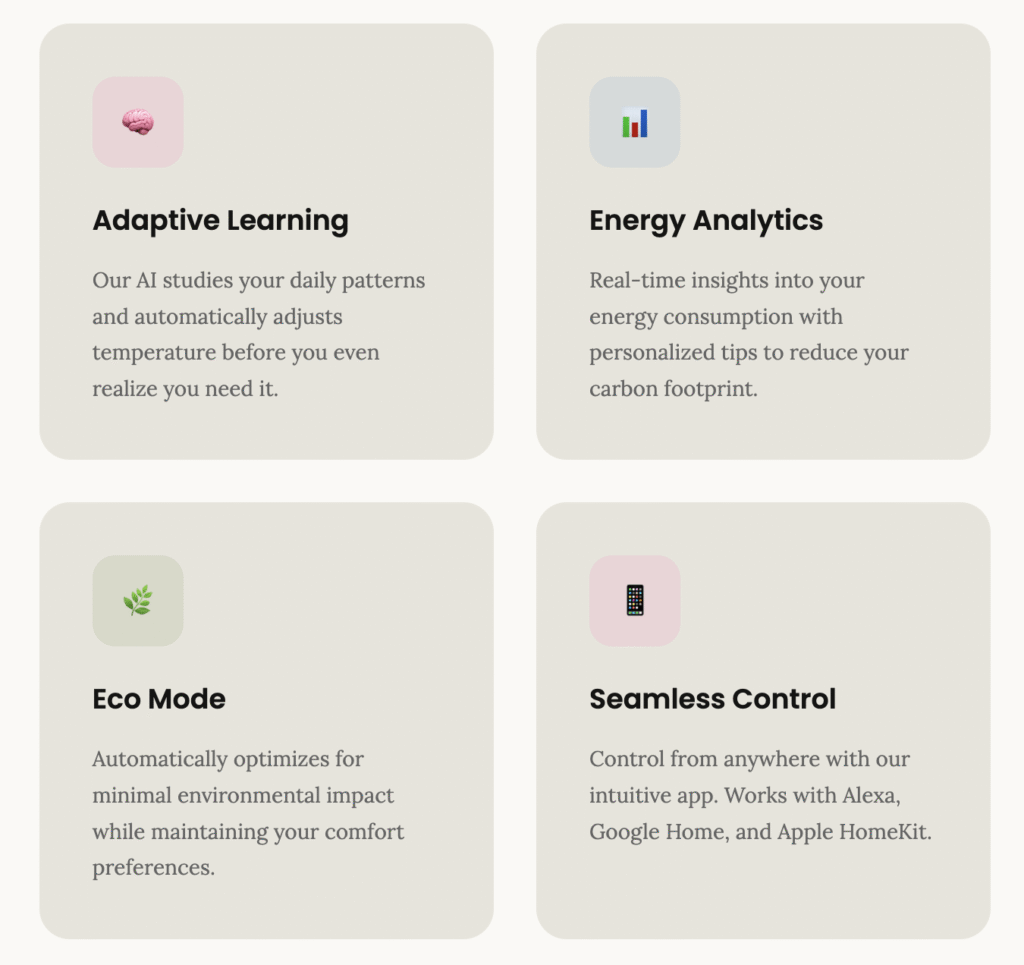
This worked, but it was heavy-handed. Claude applied Hot Pink almost everywhere – even wrapping feature icons – and honestly, it didn’t look great.
In the “Ready for Smarter Living?” section, it used Hot Pink as the entire background, where I expected one of the main brand colors (Dark, Light, or Gray).

Technically, it followed the override instruction. But it seemed to deprioritize the skill’s broader guidelines in the process.
When I pasted the brand rules manually, Claude balanced the Hot Pink accent against the full color palette.
With the skill active, it leaned heavily into the prompt instruction and applied Hot Pink almost everywhere, as if the override outweighed the skill itself.
Test #2: The workflow
For this test, I asked Claude to review a 500-word article about the future of remote work that was full of AI fluff, rewrite it to sound more human, and save the final output as a Word document.
The main Skill here was ai-ism-editor, which flags common AI-phrase patterns: fluffy openings (“In today’s fast-paced world”), grandiose verbs (“revolutionize”), and flowery metaphors (“a vibrant tapestry of…”).
I also used the built-in docx Skill to generate the file.
My goal was to test the chain of command: can Claude apply a linguistic transformation using one Skill (ai-ism-editor) and then pass the edited content to a technical Skill (docx) without dropping the ball?
Attempt 1 (without Skills):
I need to edit an article. Here are the rules: [inserted the full ai-ism-editor text manually]
Rewrite the pasted text using the rules above. Once rewritten, generate a .docx file containing the new text.
[inserted the full draft of the article]
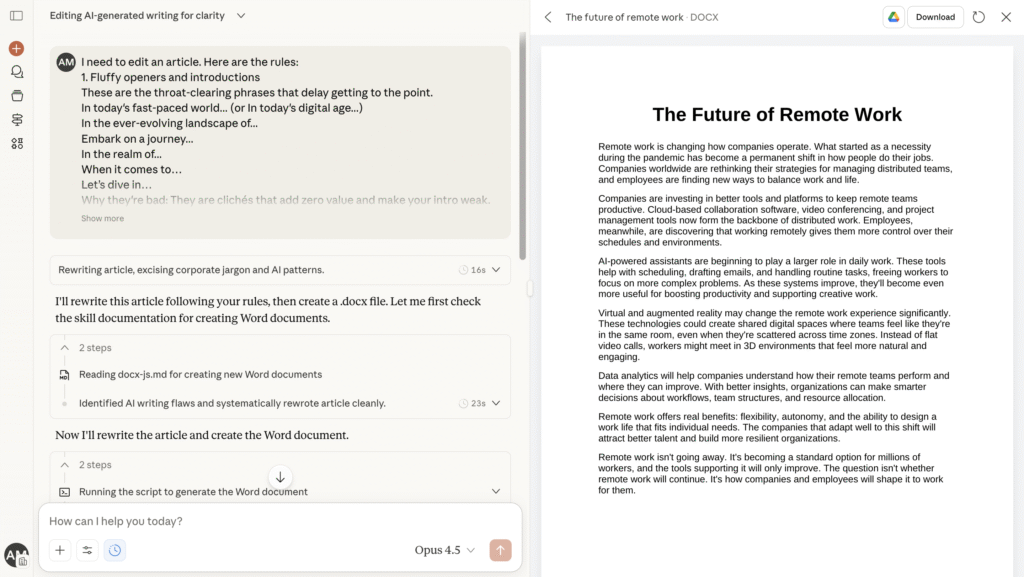
It did an excellent job. It removed the fluff (“vibrant tapestry,” “symphony of flexibility”) and replaced it with direct statements. It also followed my punctuation rules to avoid em dashes.
There were a few lines I’d still tweak manually (for example, I’d change “AI-powered assistants are beginning to…” to “AI-powered assistants are starting to…”), but that was personal preference. The essential cleanup worked exactly as intended.
Attempt 2 (with Skills):
I need to edit an article. Rewrite the pasted text using the ai-ism-editor skill. Once rewritten, generate a .docx file containing the new text.
[inserted the full draft of the article]
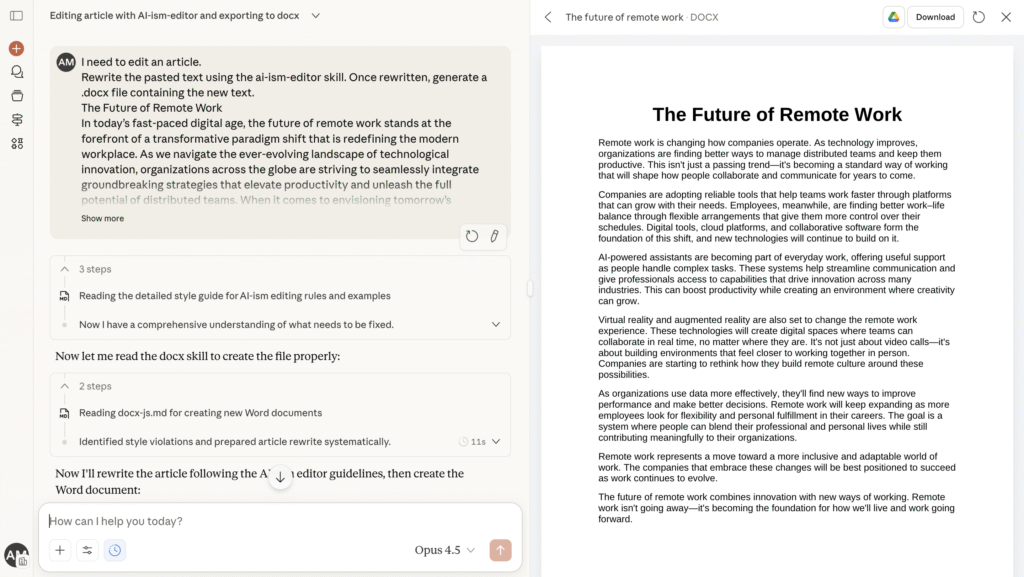
This result surprised me. I actually preferred the previous version.
It removed the obvious jargon (“paradigm shift,” “unleash”), but it missed several finer rules. I explicitly wrote in the Skill file to replace em dashes with commas, yet three showed up in the final version.
It also claimed to fix structural clichés like “it’s not just about X — it’s about Y,” but I still saw lines such as:
“It’s not just about video calls—it’s about building environments…”

So was it convenient? Yes, not having to paste a full rule set each time is a real advantage. Was it perfect? No. The Skill-based version felt less thorough and skipped some structural fixes I had hard-coded into the file.
It worked, but the manual-paste version delivered a cleaner result.
Test #3: The mix
For the final test, I wanted to create a five-slide presentation on the future of remote work. I used three Skills at once: brand-guidelines (visuals), ai-ism-editor (content), and pptx (output).
I did this to see whether Claude understands context separation.
Could it keep the visual rules (colors and typography), text rules (no robotic phrases), and technical rules (presentation file structure) separate while still working together?
I need a 5-slide presentation on “The Future of Remote Work” based on the pasted content. Please use three skills together to build this:
- Visuals: Use the brand-guidelines skill for the slide master, font choices, and title colors.
- Content: Use the ai-ism-editor skill to edit the content and make it sound natural and human.
- Output: Use the pptx skill to generate the final file.
[inserted the full draft of the article]
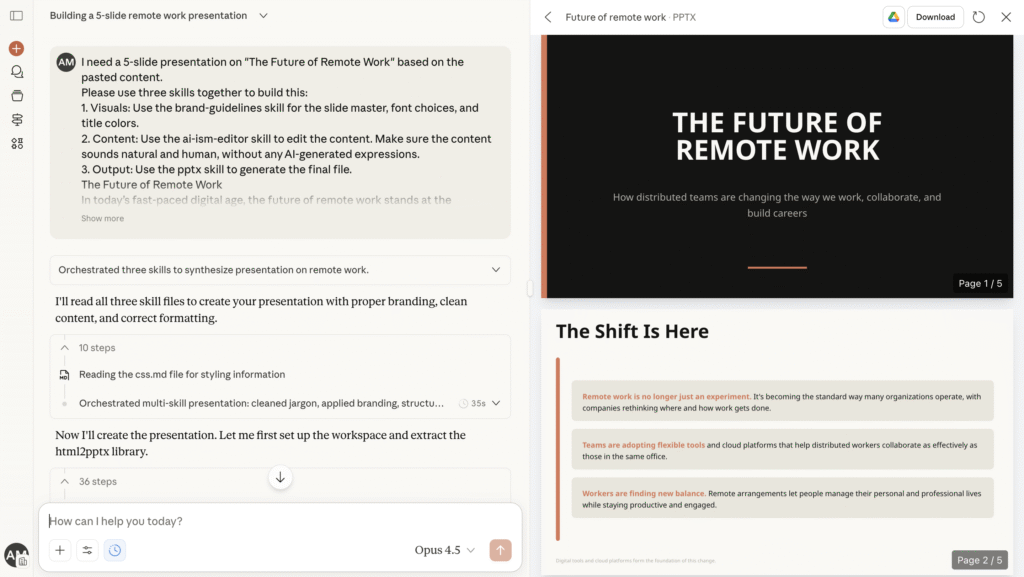
It took about five minutes of “thinking” to generate the result. A bit long, but reasonable since it was processing three logic streams at the same time.
It handled the juggling surprisingly well. It generated a PPT file, applied the main brand colors (Dark/Light/Gray) along with the accent colors (Orange/Blue/Green), and cleaned up the text so it was mostly free of AI-isms.
It also extracted only the key points, which is exactly how a presentation should behave.
The downside was the layout. Text overlapped on the fourth slide, and some elements randomly shifted from left-aligned to centered.
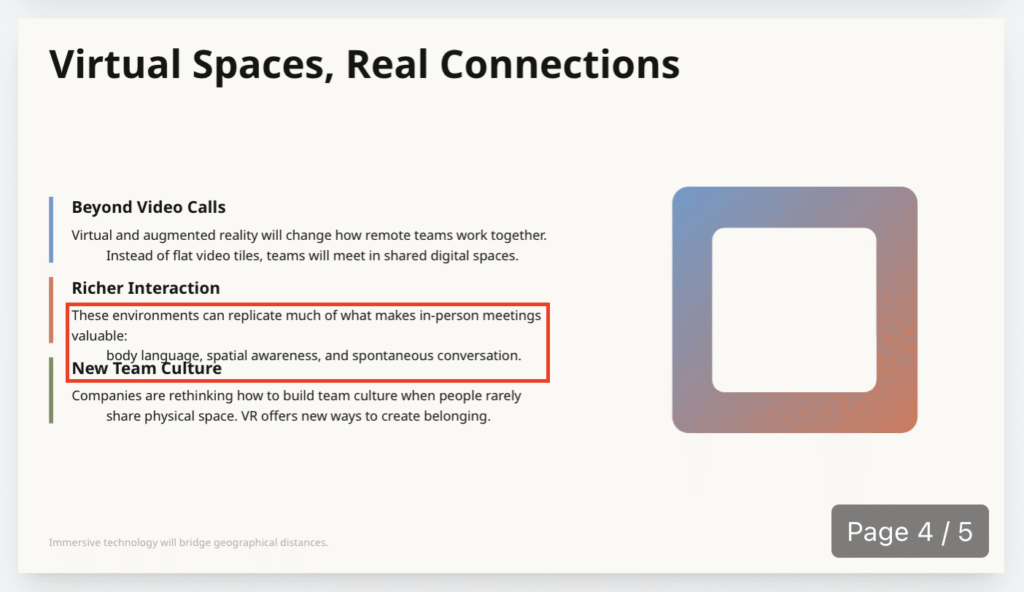
And just like in Test #2, a few structural clichés and em dashes slipped through the cracks.
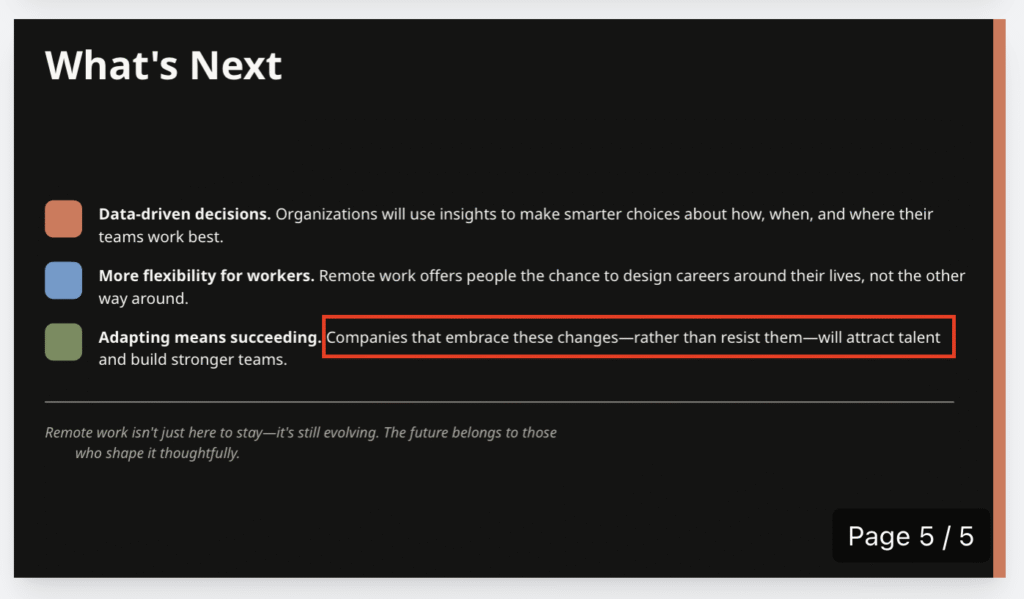
So Claude didn’t break when using multiple Skills – it completed the task and followed most of the rules. But the quality dipped because it had to juggle three different instruction sets at once.
The flaws were minor, but still required manual adjustments.
What I loved about Claude Skills
First, the setup was surprisingly easy – mostly because I took a shortcut. Instead of building the Skill myself, I just asked Claude to do it, and it did.
I didn’t have to touch a JSON file, write code, or manually upload a ZIP package. It simply worked, removing the biggest technical barrier.
I also love that Claude finally remembers most of my rules. I hate pasting my style guide into every new chat or reminding the model who I am.
Now I just say, “Use the ai-ism-editor skill,” and it knows exactly what to do. This eliminates the usual issue where Claude forgets your initial context halfway through the session.
And honestly, the file generation is also a big win. The built-in ability to create Word documents and PowerPoint slides means I’m getting a finished product I can download – not just a long wall of text I have to paste into another app.
What disappointed me about Claude Skills
Skills can be too aggressive. In Test #1, when I asked for a Hot Pink accent color, Claude made almost everything pink.
It stopped applying common sense and followed the override blindly, losing the design balance I normally get from a standard prompt.
I also noticed some sloppiness with the details. In Test #2, the Skill version ignored several rules I set – like replacing em dashes – even though the manual prompt handled them perfectly.
My impression is that, when you use a Skill, Claude understands the big idea but stops paying attention to the fine print.
Finally, the wait time was annoying. When I combined three Skills in Test #3, I watched the thinking bubble for five minutes. It eventually worked, but the long pause – plus the manual cleanup I still had to do – broke the flow.
It stopped being a snappy chat and started feeling like I was waiting for heavy software to load.
So, are Skills worth your time?
My biggest takeaway is that Skills aren’t just “glorified prompts in a folder” – they’re guardrails. They shine when you apply them to what I call forever tasks.
If you repeat the same workflow every week, like generating a status report with a rigid format or checking text against a strict style guide, Skills are a genuine upgrade.
They ensure consistent compliance and save you from repeating the same rules endlessly.
But when using them, keep your expectations in check. Pay attention to the details. As my tests showed, Skills often prioritize the general gist of a task over your fine-print instructions.
Be ready to double-check the output and make small manual adjustments, especially around formatting or design choices.
On the flip side, if you’re a “fix-it-and-forget-it” user, Skills probably aren’t for you.
If you mostly rely on Claude to troubleshoot random error logs, explain something on the fly (“Explain this SQL query”), or format a messy list into a CSV once and never again, Skills won’t add much value.
The five minutes you’d spend crafting a “perfect debugger skill” is four minutes longer than it would take for you to paste the error and its documentation straight into the chat.
In those cases, the friction of creating the file outweighs the benefit of a slightly faster start.
My final rating: 7/10
- I started at 10. The potential and architecture are solid. Then I deducted:
- -1 point for setup. Clunky and technical unless you use the chat shortcut.
- -2 points for precision. Struggles with fine details and Skill mixing.
My final verdict? Skills passed the test, but with a caveat: they’re not perfect, and they’re not magic. You’ll still need some patience and the occasional manual fix.
But for the convenience of never pasting a five-page style guide again? Definitely worth the setup tax.
All of the tutorial content on this website is subject to
Hostinger’s rigorous editorial standards and values.

Ariffud is a Technical Content Writer with an educational background in Informatics. He has extensive expertise in Linux and VPS, authoring over 200 articles on server management and web development. Follow him on LinkedIn.