The curl command in Linux is one of those tools that looks simple on the surface but has surprising depth once you start using it regularly. Most people know it as “that command to download a file,” but sysadmins rely on it daily for testing APIs, debugging HTTP headers, uploading data, checking SSL certificates, and a lot more.
This guide covers practical, real-world curl usage. Not a dry man page recitation. If you want the full option reference, man curl has it. Here, we focus on what you will actually use.
In This Article
What is curl?
curl (Client URL) is a command-line tool for transferring data using URLs. It supports HTTP, HTTPS, FTP, FTPS, SCP, SFTP, SMTP, IMAP, and more. It ships pre-installed on most Linux distributions and macOS.
The project has been maintained by Daniel Stenberg since 1998 and runs on billions of devices at this point. If it is not already on your system, install it:
# Debian/Ubuntu
sudo apt install curl

# Fedora/RHEL/CentOS
sudo dnf install curl

# Arch
sudo pacman -S curl
Basic Usage
The simplest use case: fetch the content of a URL and print it to stdout.
curl https://example.com
That outputs the raw HTML of the page. Useful for quick checks, piping into grep, or testing that a server is responding.
Save output to a file
Use -o to specify a filename, or -O to use the filename from the URL.
# Save as a specific filename
curl -o myfile.html https://example.com

# Use the remote filename
curl -O https://example.com/archive.tar.gz
For downloading files, -O is usually what you want. For scripting, -o gives you control over the name.
Follow redirects
By default, curl does not follow HTTP redirects. Add -L to follow them.
curl -L https://example.com
A lot of URLs redirect from HTTP to HTTPS, or from a bare domain to www. Without -L you just get the redirect response and nothing else. I always include -L unless I specifically want to inspect the redirect itself.
HTTP Headers and Responses
This is where curl really shines for sysadmins and developers.
Show response headers only
curl -I https://example.com
The -I flag sends a HEAD request and prints only the headers. Use this to quickly check HTTP status codes, cache headers, content types, and server software.
HTTP/2 200
content-type: text/html; charset=UTF-8
cache-control: max-age=604800
etag: "3147526947+ident"
expires: Mon, 14 Jul 2025 12:00:00 GMT
last-modified: Thu, 17 Oct 2019 07:18:26 GMT
content-length: 1256
server: ECS (laa/7B5B)
Show both headers and body
curl -i https://example.com
Lowercase -i includes the response headers in the output, followed by the body. Good for inspecting the full response in one shot.
Show verbose output
curl -v https://example.com
Verbose mode shows the full request and response cycle: DNS resolution, connection, TLS handshake, request headers sent, and response headers received. Lines starting with > are sent data; lines with < are received.
This is invaluable when debugging connection issues or verifying SSL configuration. I use this constantly when troubleshooting web servers. If you need to go even deeper, strace can trace the actual system calls curl makes during a request.
Even more detail with –trace
curl --trace trace.txt https://example.com
Dumps a full hex and ASCII trace to a file. Usually overkill, but useful when debugging protocol-level issues.
Sending Custom Headers
Use -H to add or override request headers.
curl -H "Accept: application/json" https://api.example.com/data
curl -H "Authorization: Bearer your_token_here" https://api.example.com/data
Multiple -H flags are fine:
curl -H "Content-Type: application/json"
     -H "Authorization: Bearer your_token_here"
     https://api.example.com/data
Set a custom User-Agent
curl -A "Mozilla/5.0 (compatible; MyCrawler/1.0)" https://example.com
Some servers block requests with the default curl user agent, or return different content based on it. This lets you simulate a browser or set your own identifier.
POST Requests and Working with APIs
Most REST API testing involves GET and POST requests. curl handles both cleanly.
Basic POST with form data
curl -d "username=admin&password=secret" https://example.com/login
The -d flag sends data as a POST body with Content-Type: application/x-www-form-urlencoded by default. You do not need -X POST here because -d implies it.
POST JSON data
curl -X POST
     -H "Content-Type: application/json"
     -d '{"username": "admin", "password": "secret"}'
     https://api.example.com/login
Set the Content-Type header when sending JSON, or the server will try to parse the body as form data and reject it.
POST data from a file
curl -X POST
     -H "Content-Type: application/json"
     -d @payload.json
     https://api.example.com/endpoint
The @ prefix tells curl to read the data from a file. Very useful for large payloads or when you need to reuse the same request body.
URL-encode form fields
When form values contain spaces or special characters, use --data-urlencode to handle encoding automatically.
curl --data-urlencode "query=error logs"
     --data-urlencode "limit=25"
     https://api.example.com/search
This is safer than manually percent-encoding values, especially when building requests from shell variables.
PUT and DELETE requests
# PUT
curl -X PUT
     -H "Content-Type: application/json"
     -d '{"name": "updated"}'
     https://api.example.com/items/42

# DELETE
curl -X DELETE https://api.example.com/items/42
Authentication
Basic auth
curl -u username:password https://example.com/protected
This encodes the credentials as a Base64 Basic auth header. Fine for testing, but do not use this over plain HTTP.
Bearer token
curl -H "Authorization: Bearer eyJhbGciOiJIUzI1NiIsInR5cCI6IkpXVCJ9..."
     https://api.example.com/data
API key as a query parameter
curl "https://api.example.com/data?api_key=your_key_here"
Quote URLs containing & or ? so the shell does not interpret them as operators or glob characters.
SSL and TLS
Skip certificate verification
curl -k https://self-signed.example.com
The -k flag disables SSL certificate verification. Useful for testing against servers with self-signed certs. Do not use this in production scripts. It defeats the purpose of HTTPS.
Specify a CA bundle
curl --cacert /path/to/ca-bundle.crt https://internal.example.com
Show certificate information
curl -vI https://example.com 2>&1 | grep -A 5 "Server certificate"
The verbose output includes the full TLS handshake details and certificate chain. Handy for verifying expiry dates or checking which certificate is actually being served.
Downloading Files
Resume a partial download
curl -C - -O https://example.com/largefile.iso
The -C - flag tells curl to automatically find the point to resume from. Saves a lot of pain when downloading large files on unstable connections.
Limit download speed
curl --limit-rate 500k -O https://example.com/largefile.iso
Useful when you need to download something without saturating the connection.
Download multiple files
curl -O https://example.com/file1.txt
     -O https://example.com/file2.txt
Or use a brace expansion trick:
curl -O "https://example.com/file[1-5].txt"
Download with a progress bar

curl -# -O https://example.com/largefile.iso
By default, curl shows a transfer stats table. The -# flag switches to a simple progress bar instead. Sometimes easier to read at a glance.
Uploading Files
Upload via FTP
curl -T localfile.txt ftp://ftp.example.com/remote/ -u user:password
Upload via HTTP multipart form
curl -F "file=@/path/to/file.png" https://upload.example.com/api/upload
The -F flag sends a multipart/form-data POST, which is what most file upload endpoints expect.
Cookies
Send a cookie
curl -b "session=abc123; theme=dark" https://example.com
Save and reuse cookies
# Save cookies to a file
curl -c cookies.txt https://example.com/login -d "user=admin&pass=secret"

# Reuse saved cookies
curl -b cookies.txt https://example.com/dashboard
This is how you simulate a logged-in session across multiple requests. Very useful for testing web applications.
Timing and Performance
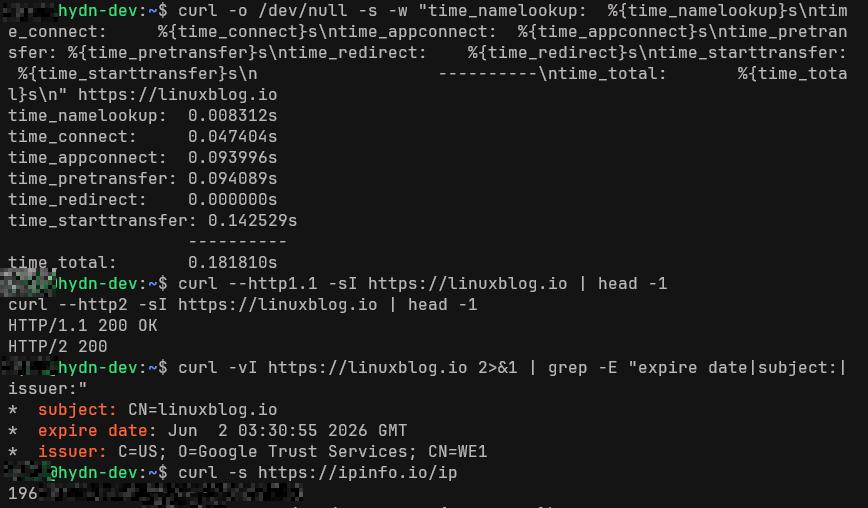
You can use curl to measure request timing with a custom format string. This is something I use regularly when checking server response times or diagnosing slow TTFB.
curl -o /dev/null -s -w "
time_namelookup:  %{time_namelookup}s
time_connect:     %{time_connect}s
time_appconnect:  %{time_appconnect}s
time_pretransfer: %{time_pretransfer}s
time_redirect:    %{time_redirect}s
time_starttransfer: %{time_starttransfer}s
                  ----------
time_total:       %{time_total}s
" https://example.com
Sample output:
time_namelookup:  0.005s
time_connect:     0.023s
time_appconnect:  0.089s
time_pretransfer: 0.089s
time_redirect:    0.000s
time_starttransfer: 0.143s
                  ----------
time_total:       0.144s
time_starttransfer is your TTFB (time to first byte). time_appconnect minus time_connect is your TLS handshake time. These numbers tell you a lot about where latency is coming from.
Also see free Linux server monitoring tools if you need something more continuous than one-off curl timing checks.
Proxies
Use an HTTP proxy
curl -x http://proxy.example.com:8080 https://example.com
Use a SOCKS5 proxy
curl --socks5 127.0.0.1:1080 https://example.com
Useful when testing through a specific network path, or routing traffic through an SSH tunnel. For more on diagnosing network routing and connectivity, see the 60 Linux networking commands reference.
Real-World Debugging Scenarios
The sections above cover individual flags. In practice, you combine them to solve specific problems. These are scenarios I run into regularly.
Bypass a CDN and hit the origin directly
If you run a site behind Cloudflare or another CDN, you sometimes need to test the origin server directly. The --resolve flag lets you override DNS for a specific host without touching /etc/hosts.
curl --resolve example.com:443:203.0.113.50 https://example.com
This forces curl to connect to 203.0.113.50 instead of whatever DNS returns. Useful for verifying that an origin server is responding correctly before or after a DNS change, or for comparing CDN-cached responses against the origin.
You can also use it to test a staging server that shares a hostname with production:
curl --resolve example.com:443:10.0.0.5 -I https://example.com
Debug TLS and certificate issues
When a site is serving the wrong certificate, or you suspect an SNI problem, -v combined with --resolve gives you the full picture.
curl -v --resolve example.com:443:203.0.113.50 https://example.com 2>&1 | grep -E "subject:|issuer:|SSL connection"
If the certificate subject does not match the hostname, that confirms an SNI or vhost misconfiguration. This is faster than opening a browser, and it works over SSH on a headless server.
To check certificate expiry quickly:
curl -vI https://example.com 2>&1 | grep "expire date"
Force a specific HTTP version
Sometimes you need to confirm whether an issue is HTTP/2-specific or happens on HTTP/1.1 as well. Use --http1.1 or --http2 to force the version.
# Force HTTP/1.1
curl --http1.1 -I https://example.com

# Force HTTP/2
curl --http2 -I https://example.com
This is useful when debugging issues with multiplexing, header compression, or server push. If a request works over HTTP/1.1 but fails over HTTP/2, you have narrowed the problem significantly.
Compare two endpoints side by side
When you need to verify that a migration or deployment did not change response behavior, run timing checks against both and compare.
# Old server
curl --resolve example.com:443:203.0.113.50 -o /dev/null -s -w "old: %{http_code} TTFB: %{time_starttransfer}sn" https://example.com

# New server
curl --resolve example.com:443:203.0.113.60 -o /dev/null -s -w "new: %{http_code} TTFB: %{time_starttransfer}sn" https://example.com
Same hostname, different backends, clean comparison. I use this during server migrations to verify that the new box is responding with the same status code and similar timing before cutting over DNS.
Using curl in Shell Scripts
The one-liners above are useful interactively, but curl really earns its place when embedded in scripts. A few flags make the difference between a fragile script and a reliable one.
Fail on HTTP errors
By default, curl returns exit code 0 even when the server responds with a 404 or 500. The --fail flag changes that: curl returns a non-zero exit code on server errors, so your script can detect failures properly.
curl --fail -s -o /dev/null https://example.com/health || echo "Health check failed"
Set timeouts
Without explicit timeouts, a curl request can hang indefinitely if the remote server stops responding. Use --connect-timeout to limit the time spent establishing a connection and --max-time to cap the entire request.
curl --connect-timeout 5 --max-time 30 -s https://api.example.com/data
In cron jobs and monitoring scripts, these two flags are essential. A hung curl process can block your entire pipeline.
Automatic retries
For transient network issues, --retry tells curl to retry the request a specified number of times before giving up.
curl --retry 3 --retry-delay 2 -s -o /dev/null -w "%{http_code}" https://example.com
The --retry-delay flag adds a pause between attempts. This is much cleaner than wrapping curl in a shell loop.
Combining flags for robust scripts
Here is the pattern I use for most scripted health checks:
curl --fail --silent --show-error
     --connect-timeout 5
     --max-time 15
     --retry 3
     --retry-delay 2
     -o /dev/null
     -w "%{http_code}"
     https://example.com/health
This exits non-zero on errors, suppresses output noise, enforces timeouts, retries on failure, and prints only the HTTP status code. If you are setting up bash aliases for commands you run frequently, a shorter version of this makes a good candidate.
Useful curl Options Quick Reference
Here is a quick reference of the flags covered above. For everyday use, most of these become muscle memory fairly quickly.
-L– Follow redirects-I– HEAD request, headers only-i– Include response headers with body-v– Verbose output-s– Silent mode, suppress progress and errors-o FILE– Write output to file-O– Write output using remote filename-d DATA– POST data-F FIELD=VALUE– Multipart form data-H HEADER– Add/replace request header-u USER:PASS– Basic authentication-k– Skip SSL verification-C -– Resume download-b FILE/STRING– Send cookies-c FILE– Save cookies to file-x PROXY– Use HTTP proxy-A STRING– Set User-Agent--limit-rate SPEED– Throttle transfer speed-w FORMAT– Custom output format after transfer--fail– Return error on HTTP server errors--connect-timeout SECS– Max time for connection--max-time SECS– Max time for entire request--retry COUNT– Retry on transient errors--resolve HOST:PORT:ADDR– Override DNS for a specific host--http1.1– Force HTTP/1.1--http2– Force HTTP/2
Practical One-Liners
A few things I actually use on a regular basis:
# Check your public IP
curl -s https://ipinfo.io/ip

# Check HTTP status code only
curl -o /dev/null -s -w "%{http_code}" https://example.com

# Get response headers silently
curl -sI https://example.com

# Test if a port is open via curl
curl -v telnet://192.168.1.1:22

# Fetch and pretty-print JSON (requires jq)
curl -s https://api.example.com/data | jq .

# POST JSON and show response code
curl -s -o /dev/null -w "%{http_code}"
     -X POST
     -H "Content-Type: application/json"
     -d '{"key": "value"}'
     https://api.example.com/endpoint
That public IP check is something I run frequently on new servers to verify routing is working as expected. The HTTP status code check is great inside monitoring scripts. If you need to check which process is already bound to a port before testing it with curl, lsof is the fastest way to find out.
If you are scripting file transfers between servers, also look at rsync and SSH-based transfers depending on your use case. curl is ideal for HTTP/API work; rsync is better for syncing directory trees.
curl vs wget
Both tools download files over HTTP, but they are not interchangeable for every task.
curlsupports far more protocols and output options. It is better for API testing, headers inspection, and custom requests.wgethandles recursive downloads natively and is simpler for mirroring websites or downloading entire directory trees.- For a quick file download, either works. For anything involving headers, POST data, or authentication, use
curl.
If you are deciding between the two for a script, the rule is simple: if you need to interact with an API or inspect HTTP responses, use curl. If you need to crawl a site or mirror a directory, use wget.
Conclusion
The curl command in Linux is one of the highest-value tools in a sysadmin’s toolkit. Once you get past basic file downloads and start using it for API testing, timing analysis, and header inspection, it changes how you approach debugging web-related problems.
The timing format trick alone has saved me a lot of time diagnosing slow responses. And having a single consistent tool for HTTP, FTP, and API work means one less thing to context-switch on.
If you want to go deeper, the official curl man page is thorough and well-written. The Everything curl online book by the project maintainer is also excellent and free to read.
Also see the broader 90+ Linux commands frequently used by sysadmins list if you are building out your command-line toolkit.